Green Text Meaning on iPhone: Why Messages Turn Green
If you see a green text bubble on your iPhone instead of a blue one, it means your message was sent using RCS, SMS, or MMS rather than iMessage. Green messages are not necessarily a sign of a problem. They often appear when you text an Android phone, when iMessage is unavailable, or when iMessage is turned off on either device.
Apple Support (SA)
+1
The color tells you which messaging service your iPhone is using, but it does not automatically tell you whether the recipient has read your message, blocked your number, or ignored you.
In this guide, you will learn what green texts mean on an iPhone, how they differ from blue messages, why they happen, and what you can do if your messages unexpectedly turn green.
What Does Green Text Mean on iPhone?
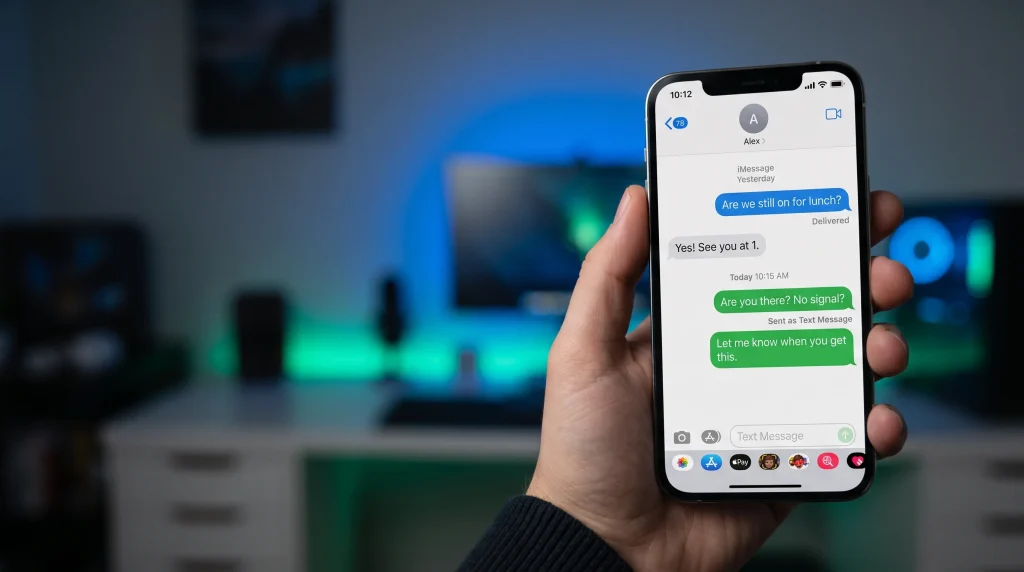
Green text on an iPhone means the message is being sent through RCS (Rich Communication Services), SMS (Short Message Service), or MMS (Multimedia Messaging Service) instead of Apple’s iMessage service. These messages appear in green bubbles in the Messages app.
Apple Support
+1
There are three main possibilities:
- RCS: A modern messaging standard that supports features such as higher-resolution photos and videos, delivery receipts, read receipts, and typing indicators when supported.
- SMS: A traditional text messaging service primarily used for text-only messages.
- MMS: A messaging service commonly used for picture messages, videos, and group messages, depending on carrier support.
On supported iPhones and carriers, RCS can provide several features that were traditionally associated with app-based messaging. However, RCS, SMS, and MMS do not all offer the same features or security protections.
Apple Support (UK)
+1
The key takeaway is simple: green means your message is not being sent as an iMessage. It does not automatically mean the message failed.
Green vs. Blue Text Messages on iPhone
The main difference between green and blue text bubbles is the messaging service being used.
| Feature | Blue messages | Green messages |
|---|---|---|
| Messaging service | iMessage | RCS, SMS, or MMS |
| Typical recipients | Apple device users with iMessage available | Android users or conversations using RCS, SMS, or MMS |
| Internet connection | Wi-Fi or cellular data | Depends on the service; RCS uses data, while SMS/MMS use carrier messaging services |
| Read receipts | Available when enabled | Available with supported RCS conversations; generally not provided by standard SMS |
| Typing indicators | Supported | Available with supported RCS conversations |
| End-to-end encryption | Supported by iMessage | Depends on the service; standard SMS/MMS are not end-to-end encrypted |
These are general differences, and exact features depend on the messaging service, software version, and carrier. Apple confirms that iMessage conversations appear in blue, while RCS, SMS, and MMS messages appear in green.
Apple Support
+1
For example, if you send a message to another iPhone user and it appears blue, the conversation is using iMessage. If you text an Android user and the bubble appears green, the message may be using RCS or SMS/MMS.
Green messages are not automatically inferior or unsuccessful. They simply use a different messaging system.

Why Are My iPhone Messages Green?
Several things can cause your iPhone messages to appear green. Understanding the reason can help you decide whether you need to change a setting or do nothing at all.
1. You Are Texting an Android Phone
One of the most common reasons for green text bubbles is that the recipient uses an Android phone.
iMessage works between supported Apple devices when the service is available. When you communicate with someone who does not use iMessage, your iPhone can use RCS or SMS/MMS instead.
On supported iPhones and carriers, RCS allows communication with Android users using features such as read receipts and typing indicators. If RCS is unavailable, messages may use SMS or MMS instead.
Apple Support (UK)
+1
What to do: Nothing needs to be fixed if your message is sending successfully. Green bubbles are normal when messaging people who do not use iMessage.
2. iMessage Is Turned Off
Your messages may turn green if iMessage is disabled on your iPhone or the recipient’s device.
For example, you might have switched off iMessage while troubleshooting a problem, setting up a new phone, or changing messaging preferences. When iMessage is unavailable, your iPhone may use another supported messaging service.
To check your settings:
- Open Settings on your iPhone.
- Tap Apps.
- Select Messages.
- Make sure iMessage is turned on.
If it is already enabled, check the Send & Receive settings to make sure your intended phone number or Apple Account email address is selected.
Apple Support (SA)
+1
3. iMessage Is Temporarily Unavailable
Sometimes, messages turn green because iMessage is temporarily unavailable on your device or the recipient’s device.
Network issues, service interruptions, or account activation problems can affect iMessage. If your iPhone cannot use iMessage for a particular message, it may offer another sending method.
What to do: Check your Wi-Fi or cellular data connection, verify that iMessage is enabled, and try sending the message again. If the problem continues, check Apple’s troubleshooting guidance.
Apple Support
+1
4. You Recently Changed or Replaced Your iPhone
A new iPhone, SIM change, or device setup can sometimes affect which phone number or email address is associated with iMessage.
If your messages unexpectedly turn green after switching devices, verify that your phone line is active and that your number is selected under Messages settings.
Apple recommends updating the device software if necessary, checking the active cellular line, and reviewing the iMessage Send & Receive settings when messages turn green after setting up a new device.
Apple Support
+1
5. RCS or SMS Is Being Used Instead
Even when iMessage is working normally, some conversations use a different messaging service.
For instance, you may have an iPhone while your friend uses Android. If your carrier and devices support RCS, the conversation may use RCS. Otherwise, it may use SMS or MMS.
RCS messages still appear green, even though they can support more features than traditional SMS.
Apple Support (UK)
+1
Does Green Text Mean Someone Blocked You?
No. A green text bubble does not mean someone has blocked your number. It only indicates that the message is using RCS, SMS, or MMS instead of iMessage.
Apple Support (SA)
+1
If a conversation that previously showed blue bubbles suddenly turns green, several explanations are possible:
- The recipient switched from an iPhone to an Android phone.
- iMessage is disabled on one of the devices.
- The recipient’s iMessage service is temporarily unavailable.
- A device, phone number, or messaging setting changed.
The bubble color alone cannot distinguish between these situations.
If you are concerned that someone blocked you, do not treat green bubbles as proof. The same color can appear for many ordinary technical reasons, and Apple does not identify a blocked contact simply by changing a message bubble’s color.
How to Fix Green Text Messages on iPhone
If your messages used to be blue and have suddenly turned green when texting someone who normally uses iMessage, follow these troubleshooting steps.
Step 1: Check Your iMessage Settings
Open Settings, select Apps, and tap Messages. Make sure iMessage is enabled.
If it is already on, open Send & Receive and check whether your intended phone number is selected. If you recently changed your phone or SIM, this is an especially useful first step.
Apple Support
+1
Step 2: Check Your Internet Connection
iMessage requires Wi-Fi or cellular data. Open a website or another online app to verify that your connection works.
If your internet connection is working but iMessage still does not work, the issue may involve activation, account settings, or a temporary service problem.
Step 3: Restart Your iPhone
Restarting your iPhone can help resolve temporary software or connectivity issues. After restarting, open Messages and try sending a new message to a contact who uses iMessage.
Step 4: Update iOS
Open Settings, select General, and tap Software Update. If an update is available, follow the on-screen instructions to install it.
Software updates can address bugs and compatibility issues. Make sure your device is backed up before performing a major update.
Step 5: Check Whether the Recipient Uses iMessage
Ask the recipient whether they still use an Apple device and whether iMessage is enabled. If they recently changed phones, the green bubble may be expected.
You do not need to troubleshoot your own iPhone if the recipient is using a device or service that does not support iMessage.
Step 6: Check Your Carrier if Green Messages Will Not Send
Green messages can use carrier services, so a working iMessage connection does not guarantee that SMS, MMS, or RCS will work.
If you see a red exclamation mark or a Not Delivered alert, try the available retry options. If SMS messages still fail, contact your wireless carrier to check your messaging plan, service, and network availability.
Apple Support
+1

Can Green Messages Still Be Delivered?
Yes. A green message can be delivered successfully. Green indicates the messaging service being used, not necessarily the delivery status.
RCS can support delivery receipts when the relevant devices and services support them. Traditional SMS does not consistently provide delivery confirmation, and availability varies by carrier and device.
Apple Support (UK)
+1
If you see a Not Delivered alert, the message may not have been sent successfully. Check your connection and carrier service, then retry the message if that option appears.
Do not assume that a green message has failed simply because it is green. Look for the actual status shown in the conversation.
What Does Green Text Mean for Photos, Videos, and Group Chats?
Green bubbles can affect more than ordinary text messages.
Photos and Videos
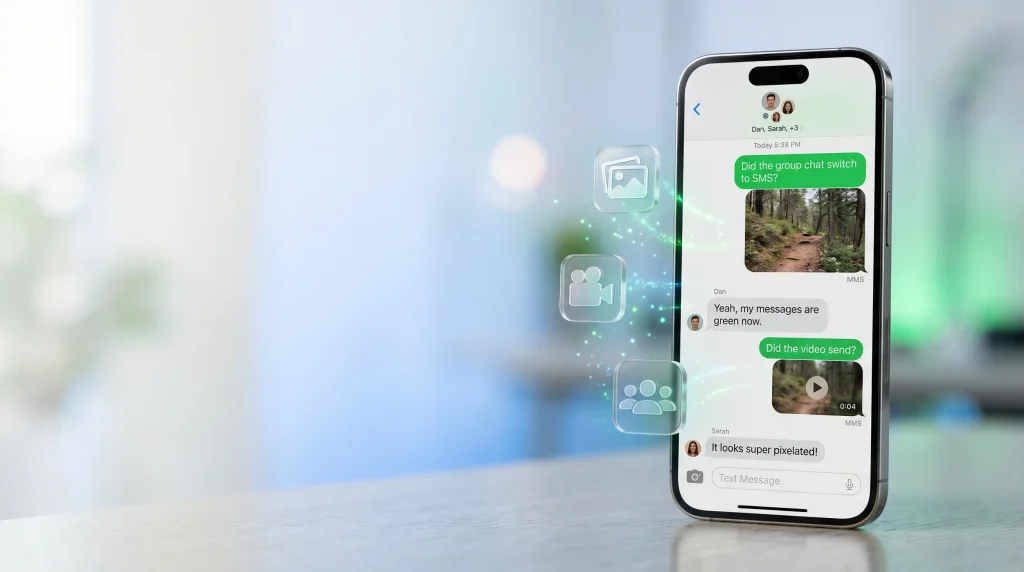
Photos and videos sent through SMS or MMS may be subject to carrier limitations, including restrictions on file size and media quality. RCS can support higher-resolution media when supported by the devices and carriers involved. iMessage also supports rich media sharing.
Apple Support (UK)
+1
If a photo looks blurry or a video appears compressed, the messaging service and its media limitations may be contributing factors.
Group Messages
Group conversations can also appear green when they use RCS, SMS, or MMS instead of iMessage. The available features depend on the messaging service and the participants’ devices.
For example, a group containing people who cannot all participate in an iMessage conversation may use another supported messaging method. Some features, such as typing indicators, read receipts, and group controls, may differ.
Message Privacy
Privacy is another important difference. iMessage is end-to-end encrypted. Standard SMS and MMS messages are not end-to-end encrypted, while RCS encryption depends on the implementation and support available for the conversation.
Apple Support
+1
If privacy matters, remember that a green bubble alone does not tell you whether a conversation uses encrypted RCS or standard SMS/MMS.

Conclusion
The green text meaning on iPhone is straightforward: your message is being sent through RCS, SMS, or MMS rather than iMessage. This commonly happens when texting Android users, when iMessage is disabled, or when the service is temporarily unavailable.
Green bubbles do not automatically mean you are blocked, your message has failed, or something is wrong with your phone. If the color changes unexpectedly in a conversation that normally uses iMessage, check your settings, connection, and recipient’s device before troubleshooting further.
FAQ
1. What does green text mean on iPhone?
Green text means your message is being sent through RCS, SMS, or MMS instead of Apple’s iMessage service. It does not automatically indicate a delivery problem.
2. Why did my iPhone messages suddenly turn green?
Your messages may turn green because iMessage is disabled, temporarily unavailable, or not active for the selected phone number. The recipient may also have switched devices. Check Settings, then Apps, then Messages to verify your iMessage settings.
3. Does green text mean I am blocked?
No. Green text is not proof that someone blocked you. It indicates that the conversation is using RCS, SMS, or MMS rather than iMessage.
4. Can you send green texts to another iPhone?
Yes. Messages between iPhone users can appear green if iMessage is disabled or unavailable, or if the conversation uses RCS, SMS, or MMS instead.
5. Are green text messages delivered?
They can be. Green messages may be delivered successfully, but delivery confirmation depends on the messaging service and its supported features. Check the message status for more information